Google Ads Editor is a free downloadable desktop application from Google that lets advertisers download Google Ads accounts, work offline, make bulk changes and then post those changes back to Google Ads. It is most useful for large account builds, restructures, bulk edits, copy-and-paste workflows, CSV imports and pre-publication review. It is not a reporting platform or an automation API. It is a productivity tool for controlled account editing.
TL;DR
- Google Ads Editor is a no-cost desktop app. Google describes it as a downloadable application for working offline and making bulk changes quickly.
- Changes are local until posted. Download the account, make edits, check changes and post when ready.
- It is strongest for bulk work. Search-and-replace, copy-paste, imports, exports, bid changes, URL changes and structural edits are faster than in the browser interface.
- It can store multiple accounts. This makes it useful for agencies and teams managing many Google Ads accounts.
- It is not a replacement for the web UI. Use the Google Ads interface for live monitoring, experiments, recommendations, billing, some diagnostics and real-time campaign review.
- It is not the same as Google Ads API. Editor is a human editing tool. API is for software integrations and automation.
- The key habit is to download before posting. Always refresh the account before publishing major edits to avoid conflicts with changes made elsewhere.
What Google Ads Editor is
Google Ads Editor is a desktop application for managing Google Ads accounts. Instead of making every change inside the browser interface, advertisers can download account data, edit campaigns locally and post the final changes back to Google Ads.
Google Ads product documentation says the Editor makes it easy to download campaigns, keep working when offline, use bulk editing tools, search and replace text, move items and undo or redo changes across multiple campaigns. Google also highlights reviewing edits in draft before posting.
This makes Editor useful when the work is repetitive, large or structural.
Examples:
- building many Search campaigns from a spreadsheet;
- replacing final URLs after a site migration;
- changing naming conventions;
- copying ad groups between campaigns;
- pausing many keywords or ads;
- reviewing hundreds of warnings before launch;
- sharing proposed changes with another specialist.
How Google Ads Editor works
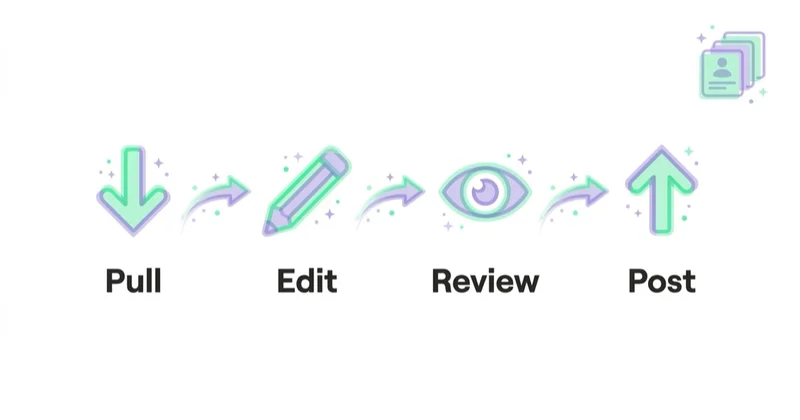
The basic workflow is simple.
| Step | What happens |
|---|---|
| Download | The account or selected campaigns are downloaded to the desktop app |
| Edit | Changes are made locally, often in bulk |
| Check | Editor checks errors and warnings before upload |
| Review | The team reviews what will change |
| Post | Approved changes are posted to Google Ads |
Google Ads Editor Help describes a similar six-step process: review settings, download an account, make changes, optionally share changes, check changes and post changes.
The important point: changes do not go live when they are typed. They go live when they are posted. That makes Editor safer than direct live editing for large builds, but only if the review process is disciplined. A bad bulk edit can still become a bad live change after posting.
When Google Ads Editor is better than the web interface
Google Ads Editor is usually better when scale matters.
| Situation | Better tool |
|---|---|
| Daily performance review | Google Ads web interface |
| Small single-setting change | Google Ads web interface |
| Bulk keyword additions | Google Ads Editor |
| Copying campaign structures | Google Ads Editor |
| Large URL replacement | Google Ads Editor |
| Importing campaign builds from CSV | Google Ads Editor |
| Troubleshooting account setup live | Google Ads web interface |
| External automation or reporting pipeline | Google Ads API |
| Simple account-level rule | Google Ads Scripts or web UI |
Most serious Google Ads teams use both. The web interface is better for monitoring and current state. Editor is better for controlled editing at scale.
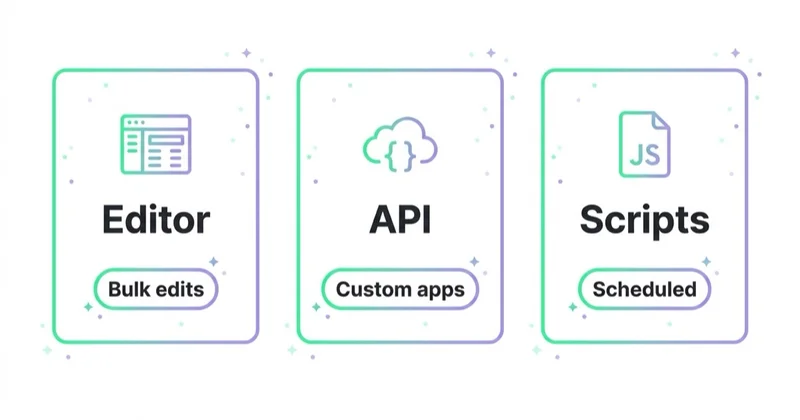
Google Ads Editor vs Google Ads API vs Scripts
| Tool | Best use case | Main limitation |
|---|---|---|
| Google Ads Editor | Human-led bulk editing and offline campaign builds | Still manual and desktop-based |
| Google Ads API | External systems, automation, reporting pipelines, many accounts | Requires engineering, credentials and maintenance |
| Google Ads Scripts | Lightweight account automation inside Google Ads | Less powerful than external software architecture |
| Google Ads web UI | Live account management, reporting and diagnostics | Slower for large repetitive edits |
A useful rule: if a trained specialist needs to review and post large changes, use Editor. If a system needs to make or fetch changes automatically every day, use API or scripts.
Safe posting checklist
Before posting significant changes from Google Ads Editor, check:
- the account was downloaded recently;
- no other specialist is editing the same campaigns live;
- filters are correct before bulk edits;
- campaign and ad group names match the brief;
- statuses, budgets and bid strategies are intentional;
- final URLs work;
- tracking templates and UTM parameters are correct;
- locations and languages did not copy from the wrong campaign;
- negative keywords and exclusions are still relevant;
- assets and ads meet character and policy requirements;
- conversion actions are not accidentally changed;
- Check changes has been run;
- warnings are either fixed or documented;
- the post summary matches the planned change.
This checklist is slower than clicking Post immediately. It is still faster than repairing a large account after a wrong URL, copied location or broad bulk replacement goes live.
Most useful Google Ads Editor functions
Bulk edit
Bulk editing is the main reason to use Editor. It can change many items at once, such as:
- statuses;
- bids;
- budgets;
- final URLs;
- tracking templates;
- ad text;
- keyword match types;
- labels;
- locations;
- ad assets where supported.
Bulk edits should be filtered carefully. The risk is changing more than intended.
Search and replace
Search and replace is useful for:
- updating brand names;
- fixing typos;
- changing URLs;
- replacing campaign naming fragments;
- updating offer language;
- changing UTM values.
Before posting, review the full change list. A broad replacement can accidentally change text that should remain unchanged.
Copy and paste
Copy-paste is useful for repeating working structures.
Examples:
- copy an ad group to a new campaign;
- copy campaigns between accounts;
- duplicate a country structure for a new market;
- copy keyword sets and adapt them;
- reuse assets with market-specific edits.
Copying saves time, but every copied structure still needs localisation, budgets, targeting and conversion context checked.
CSV import and export
CSV workflows are useful when campaign structures are planned in spreadsheets. This is common for large Search accounts, ecommerce category builds, geo expansion or repeated account templates.
Good CSV workflow:
- Export an existing structure as a template.
- Edit in a spreadsheet.
- Validate naming and URLs.
- Import into Editor.
- Check errors and warnings.
- Post only after review.
CSV imports are especially useful for Search campaign builds, but they need strict formatting. One row should describe one entity, column headers should match Google Ads Editor expectations where possible, and values such as language, location, URLs and match types need consistent formatting.
Practical CSV checks:
- use a small sample import before a large import;
- keep original columns when exporting if comparison is needed;
- validate final URLs in a separate sheet;
- check that account, campaign and ad group columns are not shifted;
- use consistent naming conventions;
- avoid hidden spreadsheet formatting issues;
- review added and removed items separately before posting.
Check changes
Check changes should be used before every serious post. It can catch issues such as missing fields, policy-related warnings, character limits or structural problems.
Warnings should not be ignored automatically. Some are harmless. Some signal that a campaign will not serve correctly.
Practical workflow for agencies
A reliable agency workflow can look like this:
- Download the latest account version.
- Save a backup or export before major changes.
- Make changes in batches, not one giant unreviewable edit.
- Use labels or notes for changed structures.
- Run Check changes.
- Review errors and warnings.
- Compare posted changes with the brief.
- Post during a low-risk time window where possible.
- Check the live account after publishing.
- Monitor delivery and conversion tracking after launch.
This reduces the risk of large mistakes, especially when several people work on the same account.
For larger teams, add ownership rules:
- one person owns the active Editor file for a planned change;
- another person reviews the change summary before posting;
- urgent live edits in the web interface are communicated before posting;
- big launches are posted in batches;
- the final account state is checked after upload;
- the change is documented in the task, CRM or project system.
Google Ads Editor is not a collaboration platform by itself. The collaboration layer has to come from the team's process.
How to avoid overwriting changes
Editor is powerful because it works locally. That also creates risk. Someone may change the account in the web interface while another person is editing offline.
Good habits:
- download recent changes before starting important work;
- download again before posting if time has passed;
- coordinate with other team members;
- use drafts or comments where the workflow supports it;
- post in smaller batches;
- review conflicts or unexpected differences;
- avoid leaving local edits unpublished for days.
A stale local account copy is one of the most common causes of confusion.
Backup, revert and recovery
Editor can revert unposted edits, but it should not be treated as a full version-control system. Reverting a selected change generally restores the item to the version that was downloaded, not to every intermediate step that happened during editing.
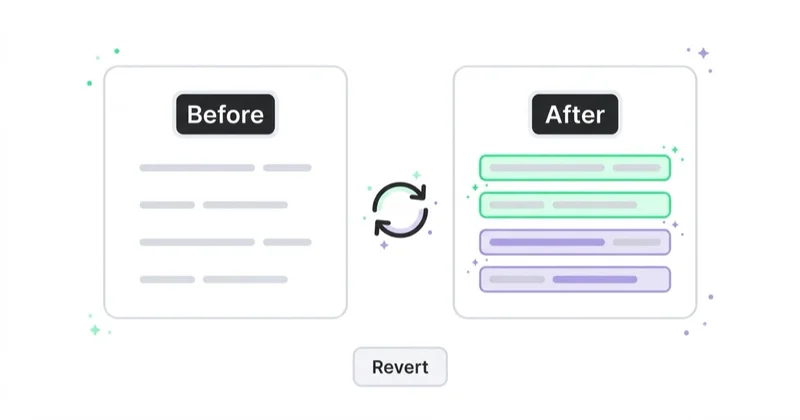
For high-risk work, it is safer to export a backup or archive before making changes. This is useful before:
- major account restructures;
- mass URL migrations;
- campaign cloning across markets;
- bulk status changes;
- large negative keyword edits;
- landing-page tracking changes;
- migration from old naming conventions.
After posting, review the post report and check the live account. If some changes fail, the affected items can remain marked in Editor, but the account still needs manual verification.
When not to use Google Ads Editor
Editor is not always the best tool.
Avoid Editor when:
- the change is tiny and faster in the web UI;
- live performance context is needed while deciding;
- the feature is not yet supported in Editor;
- real-time diagnostics are required;
- billing, access or account settings are being managed;
- a recurring automated process is needed;
- campaign changes depend on live CRM, feed or inventory data.
For recurring logic, API or scripts are often better. For one-off large edits, Editor is usually faster.
Google Ads Editor for e-commerce
E-commerce teams often use Editor for:
- large Search campaign builds;
- category keyword structures;
- seasonal promotion updates;
- final URL migrations;
- UTM fixes;
- product category ad copy;
- location or language expansion;
- bulk status changes around stock or seasonality.
However, Editor should not be the only source of truth for product data. Inventory, prices, availability and feed quality should still be managed through ecommerce systems and product feeds.
For ecommerce, Editor is usually a campaign-structure tool, not a product-data tool. Use it for Search, URLs, labels, ads and assets where supported. Use Merchant Center, feed tools and ecommerce systems for product truth.
Google Ads Editor for B2B and services
For B2B and service campaigns, Editor is useful for:
- service-location campaign builds;
- keyword theme separation;
- landing-page URL updates;
- ad copy testing across many ad groups;
- negative keyword expansion;
- account cleanup;
- cloning proven structures into new markets.
The risk is over-templating. Service campaigns still need intent-specific ad copy and landing pages.
For example, copying a campaign for five cities can save time, but each copied version still needs checked locations, landing pages, phone numbers, service availability, local proof and negative keywords.
How we approach this at Space Ads
We do most of the structural work on an account in Editor, not the web panel. The reason is simple: Editor lets us build or rebuild dozens of campaigns consistently, in bulk and offline — and then review every change before anything goes live. That "before" is a rule for us, not an exception: nothing gets posted without a check. Copying settings across ad groups and accounts saves hours and, more importantly, kills the typos in bids or URLs that cost real budget once live. We keep the panel for monitoring and small tweaks, and plan heavier changes in Editor, where it's easy to step back before posting. Less live clicking simply means fewer mistakes the account pays for.
Common mistakes
| Mistake | Why it hurts | Better approach |
|---|---|---|
| Posting without downloading latest changes | Can overwrite or conflict with live edits | Download before major posts |
| Bulk editing too broadly | Changes apply to unintended items | Filter and review before posting |
| Ignoring warnings | Campaigns may not serve as expected | Resolve or document every warning |
| Using Editor as a reporting tool | Performance context is limited | Use web UI and reports for analysis |
| Copying campaigns without localisation | Markets, URLs and offers may mismatch | Review each copied structure |
| Posting huge batches | Hard to debug if something breaks | Post in controlled batches |
| Forgetting tracking templates | Data quality breaks after launch | Check URLs, UTMs and templates |
| Confusing Editor with API | Manual edits cannot replace automation | Use API for system workflows |
FAQ
What is Google Ads Editor?
Google Ads Editor is a free downloadable desktop application from Google that lets advertisers work offline and make bulk changes to Google Ads accounts.
Is Google Ads Editor free?
Yes. Google describes it as a no-cost downloadable application.
Do changes go live immediately?
No. Changes stay local until they are posted to Google Ads.
Can Google Ads Editor manage multiple accounts?
Yes. Google says Editor can store multiple Google Ads accounts for viewing, creating and editing.
Is Google Ads Editor better than the Google Ads web interface?
It depends on the task. Editor is better for bulk edits and large builds. The web interface is better for live monitoring, diagnostics and everyday account review.
Is Google Ads Editor the same as Google Ads API?
No. Editor is a desktop tool used by people. Google Ads API is a developer interface used by software and integrations.
Can Google Ads Editor work offline?
Yes. The account is downloaded first, then changes can be made offline and posted later.
What should be checked before posting changes?
Run Check changes, review errors and warnings, confirm filters, review URLs and tracking, then download the latest account state if other people may have changed the account.
Can Google Ads Editor import CSV files?
Yes. CSV imports are one of the main workflows for adding or changing many account items at once. The file needs correct rows, headers and formatting before import.
Can changes be reverted in Google Ads Editor?
Unposted changes can be reverted, and major changes can be protected with an exported backup. After posting, recovery depends on the change type and available backup, so large edits should be reviewed before upload.
Key takeaways
Google Ads Editor is still one of the fastest tools for controlled Google Ads account editing at scale. It is especially useful for campaign builds, restructuring, CSV imports, bulk replacements and reviewing large changes before they go live.
The safest workflow is disciplined: download the latest account, edit in batches, check changes, review warnings, post carefully and validate the live account afterwards. Used this way, Editor saves time without turning bulk editing into bulk risk.
Sources and further reading
- Google Ads - Google Ads Editor product page
- Google Ads Editor Help - 6 steps to using Google Ads Editor
- Google Ads Editor Help - Post changes to Google Ads
- Google Ads Editor Help - Download recent account changes
- Google Ads Editor Help - Prepare a CSV file
- Google Ads Editor Help - Revert changes
- Google Ads Editor Help - Google Ads Editor Help Center
- Space Ads - Google Ads service
Continue learning
Continue reading
What Are Sponsored Links and How to Use Them?
Sponsored links are paid search ads shown near organic results, but their performance depends on intent, query quality, ad relevance, landing pages and measurement. This guide explains how sponsored links differ from SEO, when to use them, how to launch them in Google Ads and how to judge results by leads, sales, value and margin rather than clicks.

PPC Management Software for Agencies in 2026: What Actually Saves Time
Use this to evaluate PPC software after the old bid-management era. It explains why agencies now need cross-account standards, anomaly detection, reporting, workflow and AI-assisted change review more than another interface for manual bid tweaks.
What Are Dynamic Search Ads (DSA) and Are They Worth Using?
Dynamic Search Ads use website content to match searches, generate headlines and choose landing pages. In 2026, DSA strategy should focus on AI Max migration and URL control.