Microsoft Advertising Editor is Microsoft’s free desktop application for building and changing advertising accounts at scale. You download account data, work on a local copy, review the changes and post them when they are ready. Until you post, those Editor changes do not affect the live account.
The application is particularly useful for repetitive structural work: creating many campaigns, editing bids and budgets, replacing URLs, adding negative keywords and copying elements between accounts. It can also import campaigns directly from Google Ads or from a file.
Speed, however, is not the same as readiness. A Google import can reproduce much of an account structure quickly, but platform-specific tracking, audience mapping, network settings, product data and automation still need deliberate review. This guide explains both parts: how to use Editor safely and how to turn an import into a Microsoft Advertising account designed for its own environment.
TL;DR
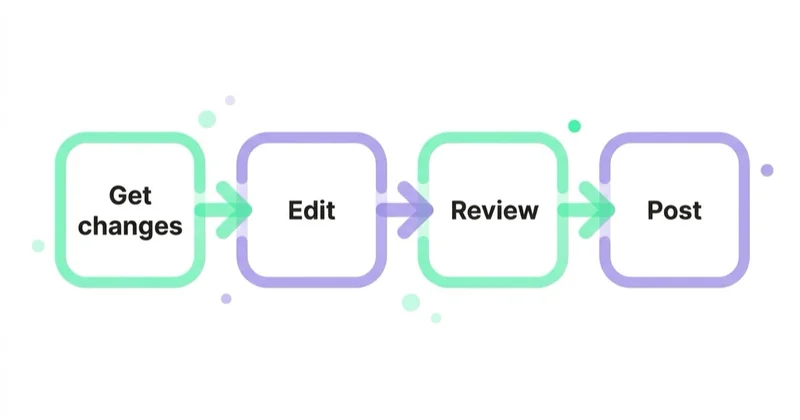
- Editor is available for Windows and macOS. Its core workflow is Get changes → edit locally → review → Post.
- Bulk edits are powerful but selection-sensitive. Always confirm the scope and affected-row count before posting.
- Google Import can bring across many campaigns, ads, keywords, targeting settings and shared negative keyword lists. It does not create perfect feature parity.
- Some eligible online conversion goals may now import, but that does not prove the Microsoft UET tag is implemented correctly or that the goals are suitable for bidding.
- Re-imports can overwrite Microsoft-side bids, budgets, statuses and settings. Scheduled imports need explicit ownership and monitoring.
- Demand Gen, Performance Max, audiences, demographic targets, Shopping campaigns and video assets may be mapped, limited or skipped according to current Microsoft rules.
- Use Editor for bulk account construction and the web interface for reporting, diagnostics, import schedules, conversion validation and features not supported offline.
What Microsoft Advertising Editor is for
Editor solves the operational problem of changing many related entities efficiently. Microsoft documents support for bulk management of campaigns, ads, keywords, URLs, bids, budgets, targeting and assets, as well as downloading multiple accounts and copying between them.
Typical uses include:
- building campaigns from a repeatable template;
- changing bids, budgets, statuses or targeting across many entities;
- adding large keyword or negative-keyword sets from a spreadsheet;
- updating final URLs, tracking templates and custom parameters after a migration;
- finding and replacing repeated text;
- copying campaigns or other supported items between accounts;
- importing Google Ads data directly or importing Excel, CSV and TSV files;
- reviewing changes locally before they reach the live account.
Editor reduces repetitive work; it does not validate the business logic behind the selection. A syntactically valid change can still send traffic to the wrong market, double a budget or remove a valuable negative. The review process is therefore part of the tool, not an optional administrative step.
The core workflow: Get changes, edit, review, post
1. Get the latest account state
Use Get changes before starting a working session. This synchronises the local copy with changes made in the browser, API, automated imports or by another user.
Decide whether the task needs the full account or selected campaigns. For a multi-account manager, downloading only the relevant accounts and entities can reduce loading time and make accidental cross-account work less likely.
2. Define and record the intended change
Before editing, write a short change specification:
- account and campaign scope;
- fields that should change;
- source of the new values;
- expected number of affected entities;
- fields that must remain untouched;
- validation owner and rollback route.
For higher-risk work, export the relevant state to a file and retain the approved input sheet. That creates evidence of what was intended and can help reconstruct previous values if a live change needs correcting.
3. Make changes to the local copy
Use filters and the navigation tree to isolate the correct entity type. If values originate in a spreadsheet, preserve identifiers and column headings carefully. Microsoft supports file imports using Microsoft Advertising or Google Ads column formats, with a column-matching step before import.
For European spreadsheet locales, pay particular attention to commas and decimal points in bids, budgets and adjustments. Microsoft’s documentation recommends reviewing the numerical delimiter in the import preview because a locale mismatch can change how values are interpreted.
4. Review pending changes
Filter by the change indicators and inspect:
- entity count by type;
- old and new values;
- campaign and account scope;
- additions, edits and deletions separately;
- status, budget, bid strategy, location, language and network fields;
- URL and tracking changes;
- shared asset or list associations.
If the specification expected 60 URLs to change and Editor shows 6,000 affected ads, stop and find the selection or matching error. Do not assume posting errors will protect the account: Microsoft will reject invalid values, but it can accept a valid value applied to the wrong entities.
5. Post in controlled batches
For a large or irreversible restructure, post one representative campaign first. Review the upload summary, resolve skipped items and validate the live state in the browser. Then post the remaining batches.
After posting, check Change History and the live campaign settings. Some eligible recent changes can be undone in the web interface, but Microsoft does not guarantee that every action is reversible. A prepared rollback sheet is more reliable than assuming an Undo button will be available.
The bulk functions worth learning first
Make multiple changes
Paste structured rows from a spreadsheet to add or update supported entities in bulk. Use a unique, stable identifier wherever the workflow provides one, then verify how the columns map before accepting the import.
Find and replace
Useful for domain migrations, naming conventions and repeated copy changes. Restrict the selection and field first. A domain string might appear in final URLs, tracking templates and ad copy; replacing it everywhere can create a different result from replacing it only in final URLs.
Copy and paste between accounts
This can accelerate a new account or market build, but the copied structure remains only a template. Review account currency, time zone, billing, location and language, legal requirements, conversion goals, URLs, audience availability and budgets in the destination account. Some account-level properties are not campaign settings and cannot simply be “changed after copying”.
Filters and advanced search
Use filters to isolate missing assets, active entities inside paused parents, URL patterns, bid ranges or naming inconsistencies. Save the logic in the change specification so another reviewer can reproduce the selection.
Shared negative keyword lists
Editor can create and maintain shared negative keyword lists and associate them with campaigns. This is useful for consistent brand-safety, employment, support or other irrelevant-query exclusions, provided the list is relevant to every campaign that receives it.
Google Ads import: direct, file-based and repeated
Microsoft Advertising Editor supports direct Google Import after the user signs in to Google, and it also supports file-based imports. The online Microsoft Advertising interface offers import schedules and history. The available options can differ by workflow and account, so confirm the current import summary instead of relying on an old checklist.
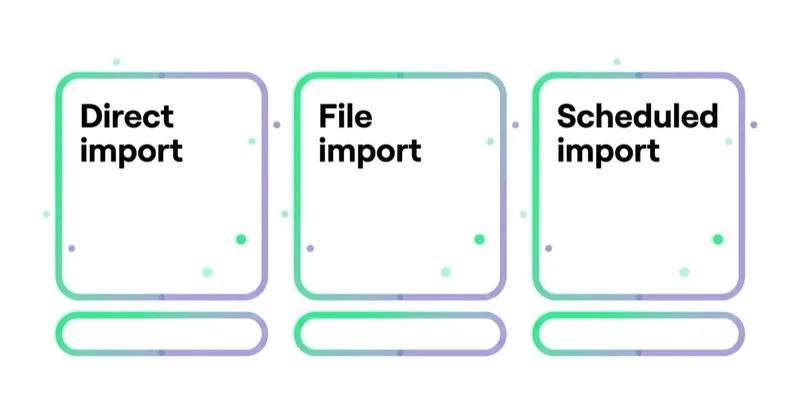
An import can be used in three distinct ways:
- Initial import: create new Microsoft entities from selected Google campaigns.
- Selective re-import: bring across selected additions or updates.
- Scheduled import: periodically fetch Google changes through the online import workflow.
The third option is not a neutral “sync”. Depending on selected options, a re-import can update, overwrite, pause, remove or rename Microsoft-side entities. Microsoft specifically recommends checking import settings and pausing or editing schedules if unexpected budget, bid or status changes appear.
Assign one owner to every schedule and document:
- source and destination account;
- included campaigns and entity types;
- whether existing items can be updated;
- whether items removed in Google should be removed in Microsoft;
- fields intentionally managed separately in Microsoft;
- alerting and review cadence;
- how to pause the schedule during major restructures.
What currently imports — and where mapping changes the result
Microsoft maintains a detailed, frequently updated “What gets imported from Google Ads” reference. The right process is to consult it for the exact campaign type and review the import summary. Important current examples include:
Conversion goals and UET
Some eligible online, tag-based destination URL goals created in Google Ads can be imported when the option is available. Google Analytics or Search Ads 360 goals and unsupported goal types do not simply become equivalent Microsoft goals. Data-driven attribution may also map to a different attribution model.
Even when a goal appears in Microsoft Advertising, verify:
- that the UET tag or supported event implementation is present on the site;
- that the goal fires only on the intended action;
- revenue and currency values;
- primary versus secondary treatment;
- attribution model and window;
- inclusion in the campaign’s bidding goals;
- deduplication and consent behaviour.
An imported goal name is not proof of working measurement.
Audiences and demographics
Audience taxonomies are not identical. Some in-market and rule-based website audiences can map; customer lists, Google Analytics remarketing lists, YouTube visitor lists and other audience types may not import. Unsupported subcategories can map to a broader parent audience.
Microsoft currently imports age and gender targeting but not every Google demographic dimension, and age brackets can map differently. Review the resulting audience and demographic settings rather than assuming the source segmentation survived unchanged.
Negative keyword lists
Contrary to older advice, Microsoft’s current documentation says shared negative keyword lists can import at account, campaign and ad-group levels. Existing Microsoft and Google negatives may be merged, while associations can be overwritten by the imported Google associations. That makes negative-list review essential even though the entities transfer.
Network and location targeting
Google network settings map to Microsoft network options rather than copying literally. Unsupported locations can be mapped to a supported parent location and flagged in the import report. A parent-country target is materially broader than an unsupported city or region, so treat mapping warnings as launch blockers until reviewed.
Demand Gen, Performance Max and video
Google Demand Gen campaigns can import as Microsoft Audience campaigns. Performance Max may import as Performance Max or, in specific cases, Search. Unsupported assets and goals can change the resulting configuration. Microsoft cannot import the YouTube-hosted video file used by Google video campaigns, so video assets may need to be uploaded separately.
Shopping campaigns
Before importing Google Shopping campaigns, create and configure a Microsoft Merchant Center store, confirm feed compatibility and link the correct store during import. Product data requirements and supported attributes are not identical, so campaign creation does not prove products are eligible to serve.
Bids, budgets and quality signals
Microsoft has its own minimum bids and budgets. The import can raise source values that fall below those minimums unless that option is changed, and campaigns below required minimums may not import. Quality Score is also calculated and used differently, so Google performance should inform priorities but not be treated as a Microsoft forecast.
Post-import launch checklist
| Area | What to verify |
|---|---|
| Import report | Added, updated, skipped, warning and error counts; mapped locations or audiences |
| Campaign status | Nothing became active before tracking, policy and landing-page QA were complete |
| Conversion measurement | UET implementation, goal logic, values, attribution and bidding inclusion |
| Budget and bidding | Imported amounts, platform minimums, targets, portfolio strategies and learning requirements |
| Network and geography | Search partner distribution, location mapping, exclusions, language and time zone |
| Keywords and negatives | Match types, search intent, shared-list content and associations |
| Audiences | Supported mappings, broader parent audiences, unavailable first-party lists and observation/targeting mode |
| Ads and assets | Text, pins, final URLs, asset availability, policy status and missing video |
| Tracking | Source parameters, final URL suffix, templates, custom parameters, redirects and analytics channel rules |
| Shopping and PMax | Merchant store, product approvals, listing groups, assets, goals and final URL behaviour |
| Schedules | Re-import ownership, update options and protection for Microsoft-specific changes |
Editor or web interface?
| Task | Best starting point |
|---|---|
| Large structural edits and account builds | Editor |
| Spreadsheet or Google Ads file import | Editor |
| Copying supported entities between accounts | Editor |
| Reviewing import schedules and history | Web interface |
| Performance reporting and diagnostics | Web interface |
| UET and conversion-goal validation | Web interface and tag/debugging tools |
| Features listed as unsupported in Editor | Web interface |
| Final live-state and Change History check | Web interface |
Microsoft’s unsupported-feature list is not exhaustive and changes as the product evolves. If a setting is absent in Editor, confirm it in the browser rather than assuming the import removed it.
How Space Ads handles an imported Microsoft account
We use the source account as evidence and a structural starting point, not as a template that must be copied in full.
Our sequence is:
- Define the import boundary. Select campaigns, markets and entity types worth transferring.
- Protect measurement. Implement and test UET, commercial conversion goals, consent behaviour and revenue values.
- Review platform mappings. Check audiences, demographics, locations, networks, campaign types and unsupported assets against Microsoft’s current documentation.
- Remove inherited waste. Exclude obsolete campaigns, invalid URLs, irrelevant keywords and settings that already failed in the source account.
- Set Microsoft-specific controls. Establish budgets, bids, goals, reporting and naming based on the destination account.
- Launch in stages. Activate a controlled campaign group, validate traffic and conversions, then expand.
- Govern re-imports. Use scheduled updates only when ownership and protected Microsoft-side fields are clear.
This preserves the time-saving value of import without outsourcing account strategy to a mapping tool.
Common mistakes
| Mistake | Better practice |
|---|---|
| Working from an old local copy | Get changes before editing and coordinate account ownership |
| Assuming platform errors will catch an incorrect selection | Compare expected and actual change counts before posting |
| Activating everything immediately after Google Import | Import paused, complete QA, then launch controlled groups |
| Assuming no conversion goals import | Check the current import options, then validate UET and goal logic independently |
| Assuming negative lists do not import | Review imported content, merges and campaign associations |
| Treating a scheduled import as harmless synchronisation | Document every field it can update and monitor import history |
| Copying account structure across markets unchanged | Rebuild location, language, legal, currency, tracking and commercial assumptions |
| Managing every feature in Editor | Use the web interface for unsupported settings, live diagnostics and validation |
FAQ
Is Microsoft Advertising Editor free? Yes. Microsoft provides Advertising Editor as a free desktop application for Windows and macOS.
Can I import my Google Ads campaigns into Microsoft Ads? Yes. Editor supports direct Google Import after authorisation and file-based import. Select only the campaigns and options you need, review the summary and keep the imported campaigns paused until measurement, targeting, assets and budgets pass QA.
What does not transfer in a Google Ads import? The answer depends on campaign type and changes over time. Current examples include automated rules and IP exclusions, some audience types, unsupported conversion goals and YouTube video files. Other items may map differently rather than being skipped. Check Microsoft’s current import reference and the account-specific import report.
Does editing in the Editor change my live campaigns immediately? No. Local changes go live only after you select Post. Direct imports and other online account activity follow their own workflow, so still check the live account and import history.
Can I manage multiple accounts at once? Yes. Microsoft documents multi-account download, copy and paste between accounts and multiple simultaneous Google Imports. Limit the working set to the accounts required for the task.
Do I still need the web interface? Yes. Use it for reporting, diagnostics, import schedules and history, conversion validation, Change History and settings not available in Editor.
Can a re-import overwrite Microsoft Ads changes? Yes. Depending on the chosen options, re-imports can update bids, budgets, status and other settings, and can pause or remove items. Review the import configuration and pause schedules during major Microsoft-specific changes.
Key takeaways
- Use the Get changes, edit, review and Post sequence for every Editor session.
- Match the affected-entity count to a written change specification before posting.
- Treat Google Import as migration tooling, not as an approved strategy or completed launch.
- Validate conversion goals and UET even when eligible goal definitions import.
- Review mappings for audiences, demographics, locations, networks, campaign types, Shopping data and video assets.
- Govern scheduled imports because they can overwrite deliberate Microsoft-side changes.
- Use Editor and the web interface together: bulk construction in one, live diagnosis and verification in the other.
How Microsoft Ads fits alongside Google in a wider search strategy is covered in our Microsoft Ads guide, and how we run the channel on our Microsoft Ads page.
Sources and further reading
- Getting started with Microsoft Advertising Editor — Microsoft Advertising Help
- About Microsoft Advertising Editor — Microsoft Advertising Help
- Import campaigns directly from Google Ads — Microsoft Advertising Help
- What gets imported from Google Ads — Microsoft Advertising Help
- Import data using a file — Microsoft Advertising Help
- Microsoft Ads (Bing Ads) Guide 2026
- Google Ads Editor: what it is and how to use it