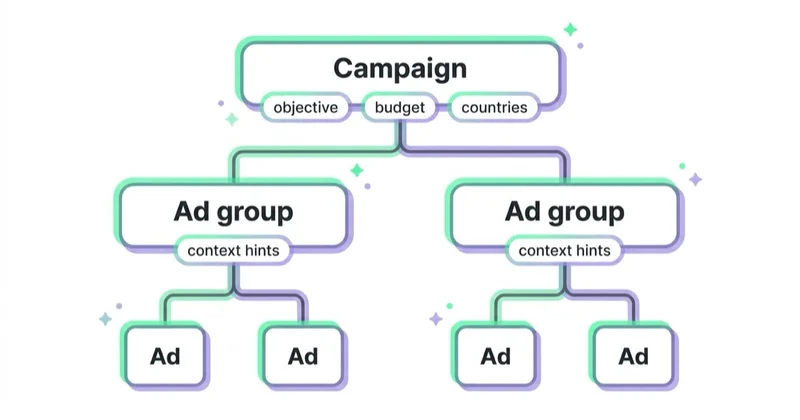
OpenAI Ads Manager is the advertiser panel for OpenAI Ads, where campaigns that appear below ChatGPT responses are built. The hierarchy is short: campaign → ad group → ad. Campaigns and ad groups define budget, targeting and bid; ads hold the title, description, image and destination URL.
Launching a campaign requires more than entering the panel. The account needs advertiser verification, billing, team access, category qualification, a reachable destination and conversion measurement. Without that, the campaign can look structurally correct while still being unready for a serious test.
This guide walks the launch sequence and explains the fields that behave differently from Google Ads or Meta Ads: context hints instead of keywords, bids expressed in micros, and a review step before any ad delivers.
TL;DR
- Three levels: campaign, ad group, ad. Budget and targeting sit on the campaign, the bid on the ad group, creative on the ad.
- Selected account settings, currency and time zone cannot be changed. A mistake can mean opening a new account; each advertiser runs a separate one.
- Campaign objective cannot be changed after creation, and neither can the selected conversion event on an oCPC campaign.
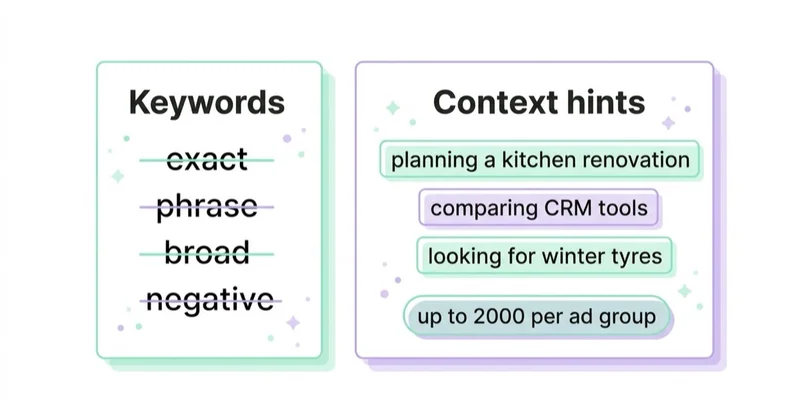
- There are no keywords. An ad group accepts up to 2,000 context hints, which are not exact-match and do not guarantee delivery.
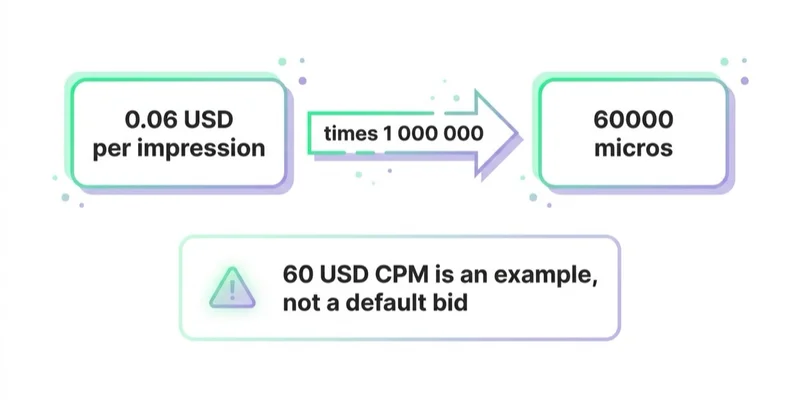
- Bids are set in micros — millionths of the currency unit — and the value is per event. A $60 CPM means $0.06 per impression, passed as
60000. - Ads Manager supports daily and total budgets. The daily minimum varies by currency, and OpenAI recommends that new advertisers start with a daily budget they can adjust while learning.
- Every ad goes through review, returning
in_review,approvedorrejected. A rejected ad needs editing to be re-reviewed. - Archiving is irreversible, unlike pausing.
- Targeting covers locations and platforms. Check the available granularity in the selector instead of assuming it from another ad platform.
Account Structure
Three levels, with a clean split of responsibility:
| Level | What it sets |
|---|---|
| Campaign | name, objective, oCPC conversion event, daily or total budget, schedule, locations, platforms and custom audiences |
| Ad group | context hints, billing event type, maximum bid, product set for feed campaigns |
| Ad | title, body copy, image, destination URL |
Ads deliver only inside the campaign's schedule and only in the locations its targeting names. Omitting a start time means delivery begins immediately. Time and currency fields respect the account defaults — which is why the time zone chosen at signup keeps reappearing in every schedule afterward.
Decisions You Cannot Undo
The most important account settings need approval before build starts:
- Advertiser details and account settings.
- Billing currency.
- Time zone.
Two more are permanent at campaign level: the bidding type, and — on a conversion-optimized campaign — the selected conversion event. Changing either requires a new campaign.
In practice this moves the currency conversation and the "clicks or conversions first" decision into pre-launch planning. That is unusual next to Google Ads and Meta Ads, where most settings can be adjusted later.
Two checks also belong before campaign build:
- whether the category falls inside OpenAI's ads content policy, which is narrow at launch and can restrict sensitive or regulated offers,
- whether landing pages allow
OAI-AdsBotandOAI-SearchBot, because OpenAI requires both to be able to reach the destination.
Crawler configuration is covered in AI crawlers explained.
Launch Sequence
1. Confirm account readiness and complete verification
Check whether the specific account is ready to work: correct business details, required verification stages complete and campaign creation available. During setup, OpenAI collects the business and account details and may verify the advertiser through Persona. Verification is separate from the quality of the campaign structure.
Once setup is complete, set the account name and logo exactly as they should appear in the ad unit. If the team will use the API, generate the key in Settings and call GET /ad_account to confirm the token and advertiser context before creating resources.
2. Set up billing, payment and team access
Create the billing profile and add a payment method before launch. Each advertiser needs a separate ad account; team members can be invited to the accounts they work on and switch between them. Assigning access intentionally matters once one agency or in-house team operates several advertisers.
3. Upload the creative asset
The image is uploaded as a file, and the ad then references its file ID. Keep one distinction straight: the file upload endpoint handles static creative assets only. A merchant catalog uses the dedicated product-feed workflow rather than the creative file endpoint.
4. Create the campaign
The campaign brings together the objective, budget, dates, locations and delivery platforms. Ads Manager supports daily and total budgets. A total budget caps spend over the campaign period but is not necessarily spread evenly across days. A daily budget provides an adjustable delivery target and is the option OpenAI recommends for new advertisers starting to learn the channel. The minimum daily amount depends on account currency.
Create the campaign paused, add ad groups and ads, then activate it only after billing, destinations, measurement and review status have been checked.
5. Create the ad group
Three fields here decide delivery:
- billing event type —
impressionfor impression campaigns,clickfor click and conversion campaigns, - maximum bid in micros,
- context hints — up to 2,000 per group.
Note the second half of that first bullet. A conversion campaign bills per click. What changes is the optimization target, not the billing model.
6. Create the ad
Title 3 to 50 characters, body up to 100, destination URL up to 2,048, plus the file ID of the uploaded image. An ad can be previewed before it runs; the preview expires 24 hours after creation.
7. Retrieve results
Reporting covers impressions, clicks, spend, CTR, average CPC, average CPM and conversions, and can be segmented by product, location and device.
Context Hints, Not Keywords
This field should not be carried over mechanically from a Google Ads keyword list.
A context hint describes a situation in which the product may be useful — not a phrase to match against. The documentation frames them as a list of descriptions or keywords indicating when a product or service might be relevant. They are not exact-match keywords and do not guarantee delivery in any specific conversation.
The difference in practice:
| Search-engine reflex | Hint describing a situation |
|---|---|
crm software |
someone comparing CRM systems for a five-person consulting team |
crm pricing |
someone asking what CRM implementation costs at five seats |
best crm small business |
someone choosing between two tools and asking which works without an internal IT team |
The 2,000-hint ceiling is a limit, not a target. OpenAI recommends keeping one ad group focused on a single product category, theme or intent area and supplying multiple ads with distinct messages. Hints should describe genuine use cases, needs and ways a customer might express the problem. They are contextual guidance, not exact targeting or negative keywords.
Bids and Micros
This is where the most persistent misunderstanding about the channel comes from.
Micros are millionths of the main currency unit, and the maximum bid is per event. The documentation gives the arithmetic example: a $60 CPM, i.e. $0.06 per impression, is passed as 60000.
Worth stating plainly: that $60 figure is a unit-conversion example in the docs, not a default or recommended CPM bid. It circulates in trade write-ups as "the default maximum bid is $60 CPM", which over-reads the example.
The only bid the documentation recommends outright applies to click campaigns: start at a maximum bid of $3–$5 per click. Ads Manager additionally shows bid-strength guidance, indicating whether a bid is likely to be competitive or may limit delivery.
Conversions worth memorizing:
| Bid | Per event | Value in micros |
|---|---|---|
| $60 CPM | $0.06 per impression | 60000 |
| $20 CPM | $0.02 per impression | 20000 |
| $3 CPC | $3 per click | 3000000 |
| $5 CPC | $5 per click | 5000000 |
Currency fields respect the account's default currency — the one fixed permanently at signup.
Targeting
Geographic targeting is set by selecting locations in the panel or API. Check the available granularity in the selector or location catalog, because the exact options can differ by setup. Location IDs come from a selector, geo lookup endpoint or downloadable CSV catalog, and a campaign supports up to 2,500 of them.
With no targeting set, a campaign can deliver more broadly than the media plan intended. Set targeting deliberately even when the first test is simple.
Platform targeting covers iOS, Android and web, with web spanning desktop and mobile browsers. Device reporting currently groups results more broadly into Mobile and Desktop, so the delivery selector is more granular than the basic report split.
Confirm which audience features apply before you build the plan around them. Owned lists, exclusions and bid logic should be treated as optional until the account and campaign setup confirm that they can be used.
Review Status
Every ad object returns a review status:
in_review— under review,approved— cleared to deliver,rejected— violates the ads policies; requires an edit to be re-reviewed.
On a rejection, check the whole path: category eligibility, consistency between the ad and destination, URL validity, access for OAI-AdsBot and OAI-SearchBot, and then the image and claims in the copy.
On state changes: pausing is reversible, archiving is not. Archive only what there is no intention of returning to.
When to Reach for the API
The panel is sufficient for running campaigns. Ads API and Bulk API earn their place in three situations:
- many campaigns, ad groups and ads created in bulk,
- product-feed campaigns with product sets filtered on catalog attributes,
- automated reporting piped into whatever dashboard the team already uses.
One rule matters in bulk operations: within a single job you cannot update a resource created in that same job, and each resource may be updated only once per job.
Product-set filters support title, body, item ID, offer ID, price, destination URL, image URL, product category, brand, seller name, external seller ID, star rating, condition and age group. The greater-than and less-than operators work only on price and star rating.
How we approach this at Space Ads
Our process starts by confirming account readiness, category eligibility and the company details used for verification. Currency, time zone and billing settings are approved before setup because later changes may require a new account. Campaigns are separated by objective and offer type; ad groups stay focused on distinct themes or use cases. Context hints describe customer situations rather than reproducing a keyword list. For an initial test we use an adjustable daily budget and keep the campaign paused until payment, destinations, measurement, previews and review statuses are ready. In API work, we additionally verify the ad account ID and convert bids to micros before creating resources.
Common Mistakes
- Opening the account with a currency or time zone chosen casually, with no way to change either.
- Filling context hints with a keyword list carried over from Google Ads.
- One ad group containing every intent, producing a report that cannot explain which theme worked.
- Passing a bid in currency units instead of micros.
- Repeating from trade coverage that the default CPM bid is $60, when that is a unit-conversion example.
- Launching a conversion campaign without meeting the oCPC preconditions.
- Treating successful account registration as proof that the campaign is ready to deliver.
- Leaving location targeting empty, so the campaign can deliver outside the planned scope.
- Planning customer-list exclusions before confirming that custom audiences apply to the setup.
- Archiving a campaign instead of pausing it.
- Hunting for a rejection cause in the creative when a blocked crawler is failing the landing page.
FAQ
What is OpenAI Ads Manager?
It is the advertiser panel for OpenAI Ads, where campaigns shown below ChatGPT responses are created. The hierarchy has three levels — campaign, ad group and ad. The panel runs as Ads Manager Beta, with an Ads API available alongside it.
What cannot be changed after the account is created?
Selected account settings, billing currency and time zone. At campaign level, the bidding type and — for conversion campaigns — the selected conversion event are also permanent. Changing any of them requires a new account or a new campaign.
How are bids expressed in OpenAI Ads?
In micros, meaning millionths of the account currency unit, and always per event. A $60 CPM is $0.06 per impression, so it is passed as 60000. A $3 CPC is 3000000.
Is $60 the default CPM bid for ChatGPT Ads?
No. That number appears in the documentation as a micros conversion example. The only bid recommended outright applies to click campaigns and is $3–$5 per click.
How do context hints differ from keywords?
A hint describes a situation in which the product may be useful, rather than a phrase to match. Hints are not exact-match and do not guarantee delivery. Up to 2,000 can be set per ad group.
Why was an ad rejected when the creative looks compliant?
Review covers the advertiser, category, creative and destination. Check whether the promise matches the page, the URL is valid, and both OAI-AdsBot and OAI-SearchBot can reach it. Compliant copy alone does not guarantee approval of the full path.
Key Takeaways
The OpenAI Ads panel is simpler than Google Ads or Meta Ads, but a launch involves more than creating a campaign. The account needs advertiser verification, complete account identity, billing and payment before campaign structure, context hints, creative, destinations and measurement can do their work.
Before account setup, approve billing settings, currency and time zone. Before campaign creation, settle the objective, budget type and any oCPC conversion event. Before delivery, verify payment, policy eligibility, measurement and access to landing pages for both required OpenAI crawlers.
The channel's full mechanics are covered in ChatGPT Ads, and running it as a managed service on the ChatGPT Ads page.
Sources and further reading
- OpenAI Help Center — Ads Manager Beta Account Setup
- OpenAI Help Center — Create Campaigns for ChatGPT Ads
- OpenAI Developers — Ads API Quickstart
- OpenAI Developers — Campaigns
- OpenAI Developers — Ad Groups
- OpenAI Developers — Ads
- OpenAI Developers — Campaign Targeting
- OpenAI Developers — Conversion-Optimized Campaigns
- OpenAI Developers — Bulk API
- OpenAI Help Center — Ads in ChatGPT: The Basics
- OpenAI — Ads Content Policies
Continue Learning
Continue reading
ChatGPT Ads: What They Are, How to Buy Them and What They Cost
ChatGPT Ads are paid placements below a ChatGPT response, matched to conversation context rather than keywords. This guide explains CPM, CPC and oCPC, creative limits, measurement requirements, product feeds, landing-page checks and when the channel makes business sense.
ChatGPT Ad Formats and Character Limits: What Actually Fits
A ChatGPT ad appears below the response and carries six elements, with specific limits: title 3–50 characters, body up to 100. The "24 / 48 character" figures in trade coverage do not match the documentation, so this guide gives the full limits table, shows how to fit a useful message, and covers the image, product ads and end-to-end consistency with the landing page.
ChatGPT Ads Conversion Tracking: Measurement Pixel and the Conversions API
ChatGPT Ads conversion tracking combines a browser pixel with the server-side Conversions API, which OpenAI describes as the more reliable source. This guide covers 12 standard events plus custom, deduplication, oppref and obref attribution identifiers, SHA-256 normalization, consent, CSP, attribution and oCPC testing.