Google Search Console is one of the most important SEO tools because it shows how Google discovers, indexes and displays a website in organic search. It reports queries, pages, clicks, impressions, click-through rate, average position, indexing status, sitemaps, Core Web Vitals, enhancements and links. It does not replace analytics, rank tracking or crawling software, but it gives first-party search data that no third-party SEO platform can fully reproduce.
The best way to use Google Search Console for SEO is not to check charts passively. Use it to find pages with high impressions and low CTR, queries close to page-one visibility, URLs that are not indexed, content that lost traffic, technical problems after a migration and internal linking opportunities. Then connect those findings with GA4, a crawl, keyword research and a content map.
TL;DR
- Google Search Console shows how Google Search sees a website.
- The Performance report is the core SEO report. It includes queries, pages, countries, devices, clicks, impressions, CTR and average position.
- The Page indexing report helps diagnose why important URLs are or are not indexed.
- The URL Inspection tool is used for single-URL checks, including last crawl, indexing status, canonical information and live testing.
- Core Web Vitals in Search Console are based on real-user field data, grouped by mobile and desktop where enough data is available.
- GSC is strongest when combined with GA4, a crawler and content strategy.
- Do not treat average position or CTR without context. Device, country, query intent, SERP layout and brand demand can change the interpretation.
What Google Search Console is
Google Search Console, often shortened to GSC, is a free Google tool for monitoring organic search visibility and technical search health.
It helps answer questions such as:
- Which queries generate impressions and clicks?
- Which pages receive organic search visibility?
- Is a page indexed by Google?
- Did Google select the expected canonical URL?
- Are there crawling, indexing or structured data issues?
- Is the sitemap submitted and processed?
- Are Core Web Vitals issues affecting groups of URLs?
- Which pages receive internal and external links?
- Did organic search traffic drop after a technical change, seasonality shift or algorithm update?
GSC is not a complete SEO suite. It does not crawl the whole site like Screaming Frog or Sitebulb, it does not show every competitor, it does not expose the full ranking algorithm and it does not replace analytics. Its value is that the data comes from Google Search itself.
Google Search Console vs GA4
Search Console and GA4 answer different questions.
| Question | Best tool |
|---|---|
| What queries triggered impressions in Google Search? | Google Search Console |
| Which pages received clicks from organic Google results? | Google Search Console |
| What happened after the user arrived on the website? | GA4 |
| Which landing pages generated conversions or revenue? | GA4 |
| Why is a URL not indexed? | Google Search Console |
| Which organic pages need UX or conversion analysis? | GA4 plus GSC |
Search Console measures search visibility before and at the click. GA4 measures user behavior after the click. For SEO decisions, both are needed.
Example: a page can have high impressions and low CTR in GSC. That suggests a search-results problem: title, meta description, intent match, SERP feature competition or brand perception. The same page can have a strong engagement rate in GA4 after users arrive. The fix is probably SERP optimization, not a complete rewrite of the page.
For analytics context, read Google Analytics 4: Why Implement It and What Are the Benefits?.
How to set up Search Console
A standard setup includes:
- Add a property in Search Console.
- Choose a domain property when possible, because it covers all protocols and subdomains.
- Verify ownership, often through DNS, HTML file, HTML tag, Google Analytics or Google Tag Manager.
- Submit the XML sitemap.
- Check whether important pages appear in the Page indexing report.
- Inspect priority URLs manually with URL Inspection.
- Connect Search Console with GA4 or Looker Studio where reporting needs it.
- Establish a regular review routine for performance, indexing and errors.
For small websites, setup can be simple. For large websites, the property structure matters. Separate properties may be useful for subdomains, international sections, staging exclusions, mobile variants or app-related search surfaces.
The Performance report
The Performance report is the main SEO analysis area in Search Console. It shows how a site performs in Google Search and, depending on eligibility, other surfaces such as Discover or News.
The most important metrics are:
- Clicks: visits from Google Search results to the site.
- Impressions: times a result was shown to a searcher according to Google's reporting rules.
- CTR: clicks divided by impressions.
- Average position: the average position of the topmost result from the site for a query or page.
Useful dimensions include:
- queries;
- pages;
- countries;
- devices;
- search appearance;
- dates;
- search type.
The mistake is to look only at clicks. Impressions show demand and potential. CTR shows whether the snippet and result are attractive enough for the query. Average position shows visibility, but it must be interpreted carefully because it is averaged across searches, locations, devices and result layouts.
How to use GSC for CTR optimization
CTR optimization starts with pages or queries that already have impressions.
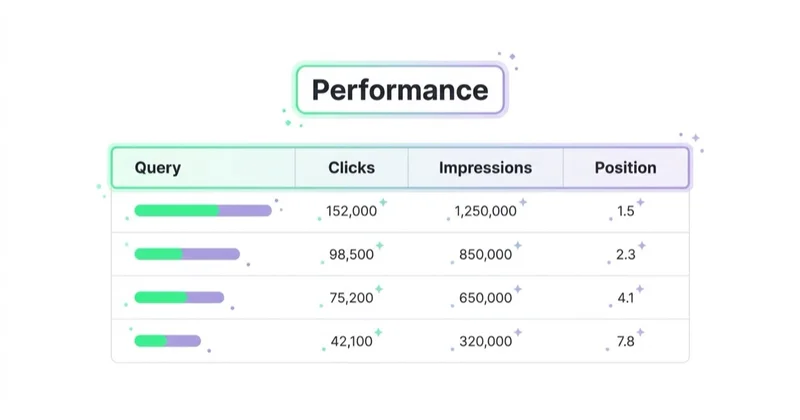
A practical workflow:
- Open the Performance report.
- Set a date range, usually 3 months or 6 months.
- Filter by a priority country or device if relevant.
- Sort pages or queries by impressions.
- Look for high impressions, meaningful average position and below-expected CTR.
- Review the live SERP manually.
- Improve title tag, meta description, H1, opening paragraph, schema eligibility and content intent match.
- Recheck performance after enough data is collected.
Good CTR improvements are not clickbait. They clarify relevance. A title should match the searcher's intent, include the topic naturally and explain why this result is worth choosing.
For title and description work, read Meta Tags in SEO: How to Write Meta Title and Meta Description.
How to find striking-distance SEO opportunities
"Striking distance" usually means queries or pages that already rank close to stronger visibility but need additional support. Many teams look at positions around 8-20, but the exact range depends on the market.
Use this process:
- Go to Performance.
- Enable impressions, clicks, CTR and average position.
- Open the Queries tab.
- Filter for average position greater than 7 and lower than 21.
- Exclude irrelevant brand, navigational or accidental queries.
- Click a query and switch to Pages to see which URL ranks.
- Decide whether the page should be improved, split, merged or internally linked.
Possible improvements:
- expand the missing section;
- answer a specific sub-question;
- add an example or comparison table;
- improve the title and meta description;
- add internal links from relevant pages;
- update sources and screenshots;
- create a separate article if intent is clearly different.
This is where GSC connects well with a keyword matrix. For planning, read What Is a Keyword Matrix and How to Use It?.
How to diagnose traffic drops
Google's own Search Central documentation recommends using the Performance report and Google Trends when investigating drops in organic search traffic.
Start by identifying the pattern:
- sudden drop after deployment or migration;
- gradual decline over months;
- seasonal demand drop;
- drop limited to one country;
- drop limited to mobile or desktop;
- drop limited to a content group;
- loss of one or two high-traffic queries;
- broad decline across many pages.
Then compare:
- last 7 days vs previous 7 days;
- last 28 days vs previous 28 days;
- last 3 months vs previous period;
- same period year over year when seasonality matters.
Look separately at:
- queries;
- pages;
- countries;
- devices;
- branded vs non-branded traffic;
- page type;
- indexing status;
- recent technical releases;
- Google Search ranking updates;
- demand data from Google Trends.
Do not assume every drop is an algorithm penalty. Traffic can decline because demand fell, the SERP changed, the page lost relevance, competitors improved, tracking changed, a canonical tag was wrong, the page became noindex, the site slowed down or a migration broke internal links.
For broader audit work, read What Is an SEO Audit and How to Do It Properly?.
Page indexing report
The Page indexing report shows which known URLs are indexed and which are not. For larger websites, it is one of the most important technical SEO reports.
Common statuses and causes include:
- discovered but not currently indexed;
- crawled but not indexed;
- duplicate without user-selected canonical;
- alternate page with proper canonical tag;
- excluded by noindex;
- blocked by robots.txt;
- soft 404;
- not found 404;
- redirect;
- server error.
Not every non-indexed URL is a problem. Some URLs should not be indexed: checkout pages, account pages, duplicate filters, internal search results, thin parameter URLs, staging URLs and low-value duplicates.
The key question is: are important URLs indexable, canonicalised correctly, internally linked and valuable enough to deserve indexation?
URL Inspection
URL Inspection is the single-page diagnostic tool in Search Console. It shows what Google knows about a specific URL.
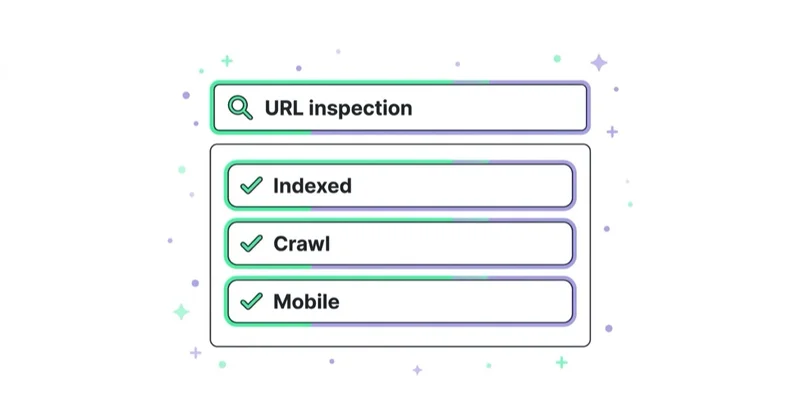
Use it to check:
- whether the URL is on Google;
- when it was last crawled;
- whether crawling is allowed;
- whether indexing is allowed;
- the Google-selected canonical;
- the user-declared canonical;
- mobile usability signals where available;
- structured data and enhancement information;
- live URL test results;
- whether indexing can be requested after a meaningful change.
URL Inspection is useful after publishing, migrations, canonical changes, noindex fixes and template changes. It should not be used as a substitute for a full crawl when the problem affects many URLs.
Sitemaps
The Sitemaps report helps confirm whether Google can fetch submitted sitemap files.
A good XML sitemap should include important canonical URLs that should be discoverable and indexed. It should not be a dump of every URL the CMS can generate.
Check whether:
- the sitemap can be read;
- the submitted URL count looks reasonable;
- important pages are included;
- redirected, blocked or noindex URLs are excluded;
- separate sitemaps exist for large sections if useful;
- newly published content is discoverable.
For dynamic websites, the sitemap should reflect real canonical inventory. For ecommerce, product availability, category structure and faceted navigation can make sitemap governance more complex.
Core Web Vitals in Search Console
The Core Web Vitals report shows URL groups by status, device type and metric where Google has enough real-user field data.
The important point is that Search Console does not show a lab test for one URL. It groups real-world data from the Chrome User Experience Report where enough data is available. That makes it useful for prioritising page templates and URL groups, not for debugging every line of front-end code.
Use it to identify:
- mobile or desktop groups with poor status;
- templates that affect many URLs;
- recurring LCP, INP or CLS issues;
- improvements after a release;
- issues that need confirmation in PageSpeed Insights, Lighthouse, CrUX or RUM data.
Core Web Vitals are part of page experience analysis, but they are not a magic SEO lever. They matter most when poor performance creates a bad user experience or affects important page templates.
Links report and internal linking
The Links report can show which pages receive the most internal links, which pages receive external links and which anchor text patterns appear.
Useful SEO checks:
- Do important commercial pages receive enough internal links?
- Are informational articles linking to relevant service or category pages?
- Are orphan or near-orphan pages visible?
- Are high-authority pages supporting priority content?
- Are internal anchors descriptive?
- Are outdated pages still receiving many links?
Search Console's Links report is not as flexible as a crawler plus link graph, but it is useful for quick validation.
Content planning with Search Console
GSC is a strong source of content ideas because it shows queries for which the site is already eligible to appear.
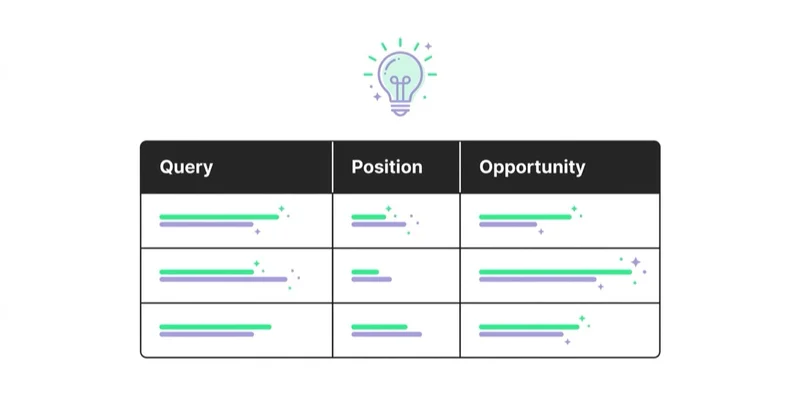
Look for:
- questions that appear in queries but are not answered clearly on the page;
- repeated modifiers such as "cost", "best", "how", "vs", "template", "examples";
- queries where one page ranks for too many different intents;
- long-tail queries that deserve dedicated sections;
- old articles that still receive impressions but no longer win clicks;
- pages with many impressions and low average position.
Not every query needs a new article. Sometimes the right action is a paragraph, FAQ answer, comparison table, title rewrite or internal link.
For topic planning, read What to Write Blog Posts About? and Is Google Trends Worth Using and What Are the Alternatives?.
Search Console for ecommerce
For ecommerce, Search Console should be used across categories, products, guides and technical templates.
Important checks:
- category pages receiving impressions but low CTR;
- product pages excluded from indexing;
- duplicate or parameter URLs;
- canonicals on product variants;
- product structured data enhancements;
- merchant listings where eligible;
- out-of-stock products;
- faceted navigation;
- internal links from guides to categories;
- seasonal query demand.
Search Console will not show margin, refunds or stock value. Connect it with analytics and business data before prioritising product-level SEO work.
For product-page content, read How to Write a Product Description That Sells and What It Must Include.
Search Console for B2B and services
For B2B, SaaS and service businesses, GSC is often most useful for content-to-lead strategy.
Focus on:
- service queries;
- problem-aware queries;
- comparison queries;
- integration and tool queries;
- local or market-specific modifiers;
- articles that should link to service pages;
- pages with strong informational visibility but weak conversion paths;
- lead-quality analysis after the click in GA4 and CRM.
A page can be valuable even when direct conversions are low. It may introduce the brand early in a long buying journey. That is why GSC findings should be interpreted with business context, not only last-click attribution.
How we approach this at Space Ads
Search Console is, for us, the one honest source of what people actually land on in Google and what they click — no guesswork. We look first for pages bleeding impressions or slipping in position, before it ever reaches the traffic numbers. Then for queries where we rank well but few people click, which usually means the title and description don't compel, not that the content is weak. Cross-referenced with traffic and conversion data, it separates three problems that are easy to blur: a page that doesn't show at all, one that shows but earns no clicks, one that gets clicks but no sales. Each has its own fix, which is precisely why we read GSC instead of guessing from traffic alone.
Common mistakes
| Mistake | Why it hurts | Better approach |
|---|---|---|
| Looking only at clicks | Misses future potential | Analyse impressions, CTR and position together |
| Treating average position as exact rank | Average position varies by context | Segment by page, query, country and device |
| Optimising every low-CTR query | Some SERPs have naturally low CTR | Check intent and live SERP before changing content |
| Requesting indexing repeatedly | It does not fix quality or technical issues | Fix the cause, then request indexing when relevant |
| Ignoring non-indexed URLs | Important pages may disappear | Review indexing by page type and priority |
| Using GSC without GA4 | Search visibility is separated from outcomes | Connect visibility with engagement, leads and revenue |
| Creating articles for every query | Causes thin content and cannibalisation | Group queries by intent and content role |
Practical monthly GSC routine
A useful monthly review can be simple:
- Check total clicks, impressions, CTR and average position by non-branded and branded traffic.
- Review winners and losers by page.
- Review high-impression, low-CTR pages.
- Find striking-distance queries.
- Check indexing changes for important templates.
- Review Core Web Vitals groups.
- Check new queries that may become content ideas.
- Export priority findings into an SEO backlog.
- Assign each finding to a clear action: rewrite, expand, link, fix, consolidate, monitor or ignore.
The point is to turn Search Console data into work. A dashboard is useful only when it changes decisions.
FAQ
Is Google Search Console free?
Yes. Google Search Console is free. A site owner still needs verified access to the property before seeing data.
How much historical data does Search Console keep?
Search Console provides historical performance data for a limited period. For long-term SEO analysis, export data regularly or connect Search Console to BigQuery, Looker Studio or another reporting workflow where appropriate.
Does Search Console show all keywords?
No. Search Console does not show every possible query. Some data may be limited, aggregated or omitted for privacy and reporting reasons. It is still one of the best first-party sources for Google organic search analysis.
Is average position the same as a rank tracker?
No. Average position is an aggregated Search Console metric. It can differ from a rank tracker because results vary by location, device, personalisation, time, SERP layout and query mix.
How often should Search Console be checked?
For active SEO, a quick weekly review and deeper monthly review is usually enough. After migrations, template releases, indexing incidents or major content updates, check it more often.
Can Search Console fix indexing problems?
Search Console can reveal indexing problems and let verified owners request indexing for specific URLs. It does not fix weak content, broken canonicals, server errors, poor internal links or blocked crawling automatically.
Should small websites use the Page indexing report?
Yes, but with context. A small website may not need daily indexing analysis, but it should still confirm that important pages are indexed and that no accidental noindex, redirect or canonical issue blocks visibility.
Conclusion
Google Search Console is essential because it connects SEO work with Google's own search data. It shows what users searched, what Google displayed, which pages earned clicks and where technical search problems may exist.
The strongest SEO use cases are practical: improve CTR, find striking-distance opportunities, diagnose traffic drops, monitor indexing, check Core Web Vitals groups, strengthen internal linking and plan content around real search demand.
Use Search Console as a decision tool, not only a reporting interface. Combine it with GA4, a crawler, keyword research, content strategy and business data. That combination turns search visibility into better prioritisation, better pages and more reliable SEO growth.
Sources and further reading
- Google Search Console Help: Performance report
- Google Search Console Help: Page indexing report
- Google Search Console Help: URL Inspection tool
- Google Search Console Help: Sitemaps report
- Google Search Console Help: Core Web Vitals report
- Google Search Central: Debugging drops in Google Search traffic
- Google Search Central: Debugging with Search Console
Continue learning
- What Is an SEO Audit and How to Do It Properly?
- Meta Tags in SEO: How to Write Meta Title and Meta Description
- What to Write Blog Posts About?
- What Is a Keyword Matrix and How to Use It?
- Is Google Trends Worth Using and What Are the Alternatives?
- How to Use Google Data Studio / Looker Studio
- Google Analytics 4: Why Implement It and What Are the Benefits?
Continue reading

Core Web Vitals: How to Fix LCP, INP and CLS
Core Web Vitals are assessed from real-user data at the 75th percentile, while lab tools help diagnose causes. Learn what LCP, INP and CLS measure and how to prioritise fixes by metric, template and user impact.
How to Use Pop-Ups Without Hurting UX or SEO
Pop-ups can improve conversion when they are relevant, accessible, easy to close and measured against real business impact.

Shopify SEO: The Checklist That Matches How the Platform Actually Works
Shopify handles several SEO basics automatically, but rankings still depend on the decisions it cannot make for you. Use this checklist to audit indexation, collections, products, filters, variants, performance and international stores in the right order.